
Teams
Discover how to create and manage teams, invite collaborators, and organize work across projects in Wikio.
Teams group people who work together on shared projects. Instead of inviting individuals to each project separately, you can add them to a team and grant access to everything the team owns.
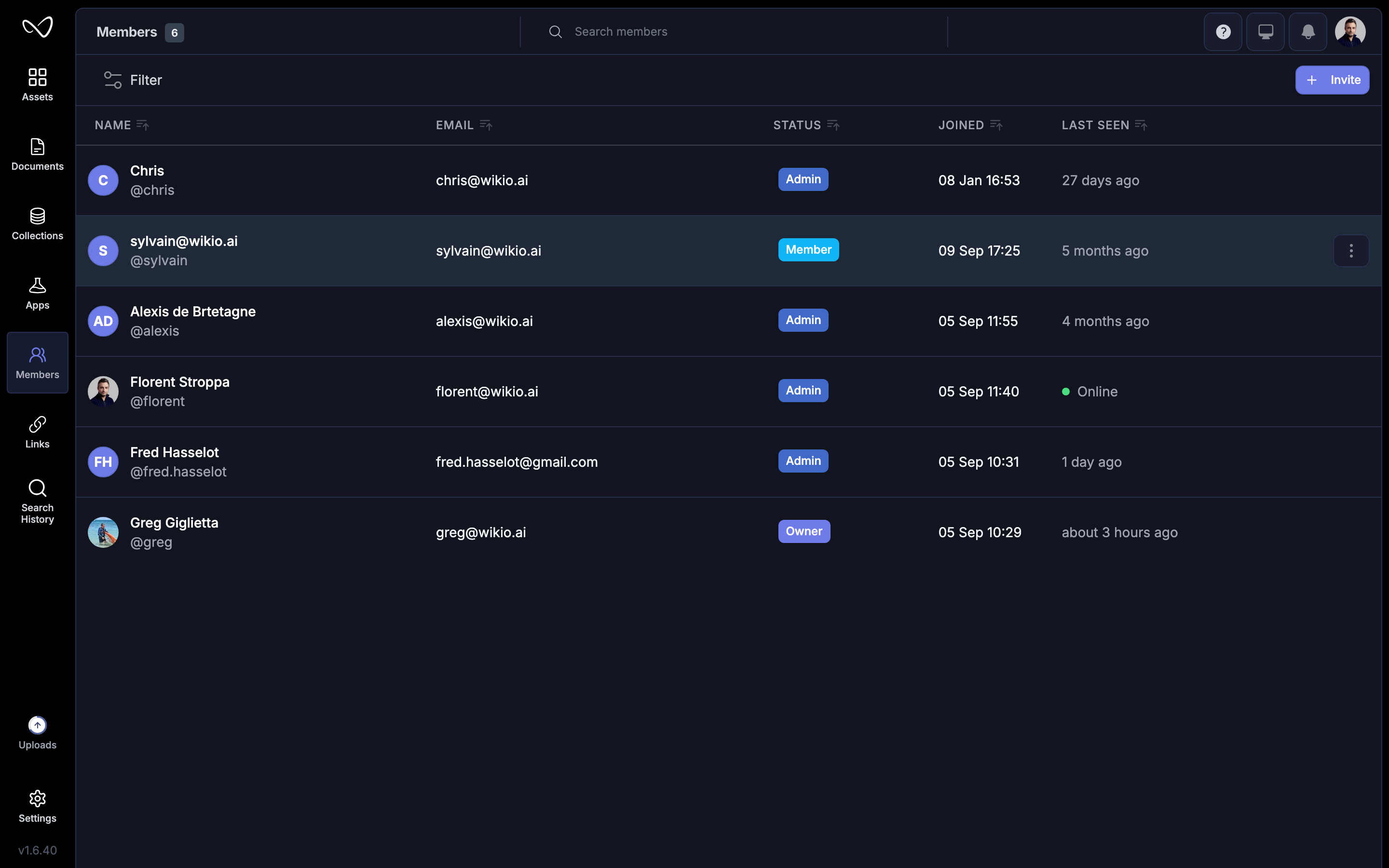
Why use teams#
- Simplify permissions: Share projects with a team instead of listing every person.
- Organize by function: Create teams for editors, reviewers, clients, or departments.
- Scale collaboration: As your workspace grows, teams keep access manageable.
Create a team#
Open workspace settings
Click your workspace name in the sidebar and select **Settings**.Go to Teams
Navigate to the Teams tab.
Create a new team
Click New team, enter a name and optional description, then click Create.
Add members to a team#
- Open the team from Settings > Teams.
- Click Add members.
- Search for existing workspace members or invite new people by email.
- Select a role for each person (see roles below).
- Click Add.
New members immediately gain access to all projects shared with the team.
Team roles#
Each team member has a role that controls what they can do within that team's projects:
| Role | Capabilities |
|---|---|
| Team Admin | Manage team settings, add or remove members, and edit all team projects |
| Editor | Create and edit projects, upload assets, run workflows |
| Reviewer | View projects, leave comments, approve versions—cannot edit |
| Viewer | View-only access to team projects |
Roles are specific to each team. A person can be an Admin in one team and a Viewer in another.
Assign projects to a team#
Projects can belong to a team so all members have access:
- Create inside a team: Hover over the team in the sidebar and click New project. The project automatically inherits team permissions.
- Move an existing project: Drag a project into the team folder, or open the project settings and change its team assignment.
Default team#
Each workspace has a default team that includes all workspace members. Projects placed in the default team are visible to everyone.
Use the default team for:
- Company-wide announcements or shared resources.
- Templates that anyone can duplicate.
- Reference materials like brand guidelines.
Keep sensitive or client-specific work in dedicated teams with limited membership.
Remove members#
- Open the team settings.
- Find the member you want to remove.
- Click the menu icon and select Remove from team.
Removed members lose access to the team's projects immediately, unless they have individual access granted separately.
Delete a team#
- Go to Settings > Teams.
- Select the team and click Delete team.
- Confirm the deletion.
Deleting a team does not delete its projects. Projects remain in the workspace and can be reassigned to another team or moved to a member's private space.
Best practices#
- Name teams clearly: Use descriptive names like "Marketing Editors" or "Client: Acme Corp" so members understand the scope.
- Limit team size: Smaller, focused teams are easier to manage than large, general-purpose ones.
- Use reviewers for clients: Give external stakeholders Reviewer access so they can comment without editing.
- Audit regularly: Periodically review team membership to remove people who no longer need access.