
Comments & collaboration
Leave frame-accurate feedback on videos, reply to teammates, and keep review conversations organized in Wikio.
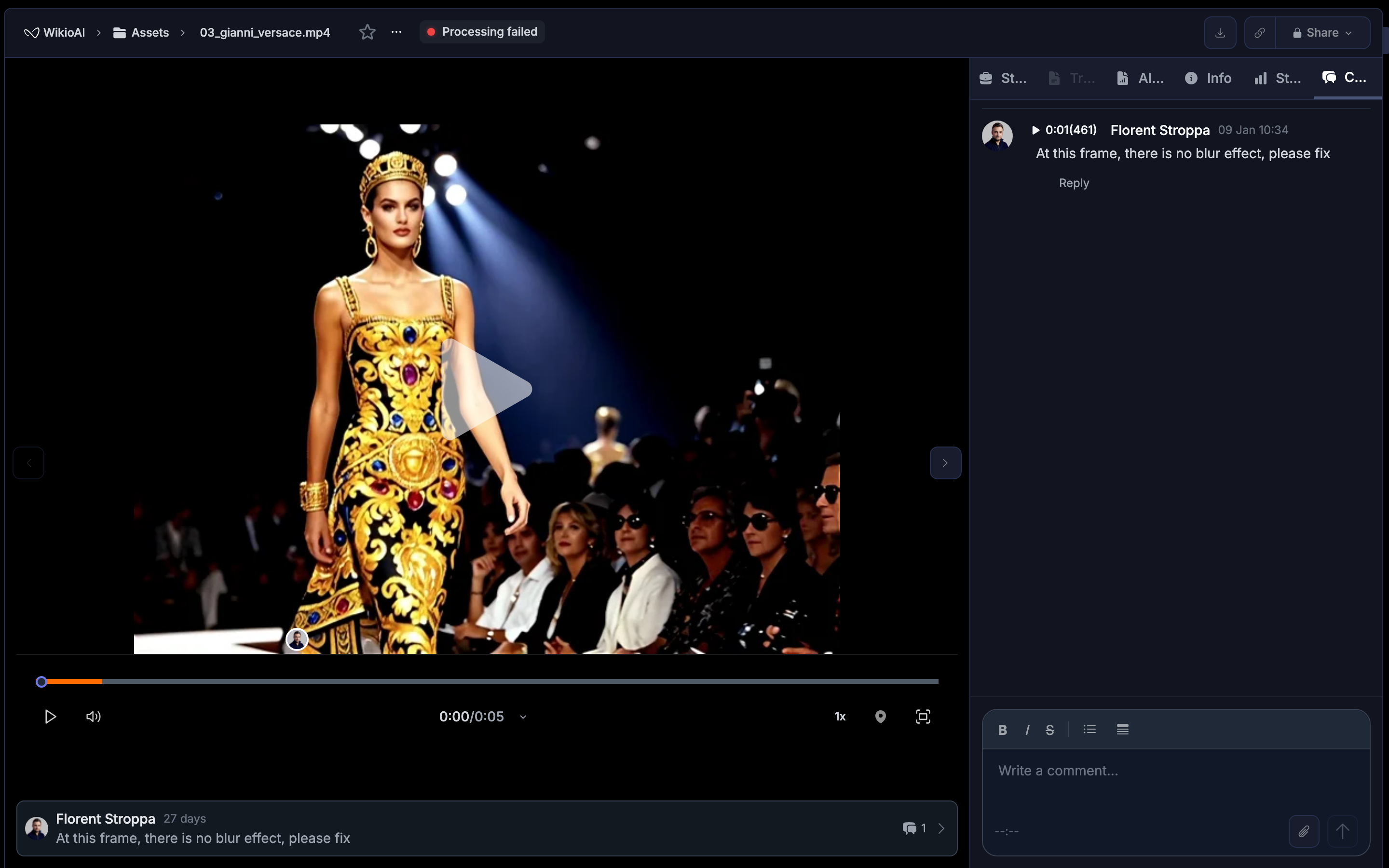
Comments in Wikio are tied directly to video timecodes, so feedback is always precise. Reviewers can point to the exact frame they're referring to, and editors can jump straight to the moment that needs attention.
Leave a comment#
Open the Comments tab
Navigate to any asset and click the **Comments** tab in the right panel.Set the timecode
Scrub the video to the frame you want to comment on. The current timecode is automatically attached to your comment.
Write your feedback
Type your message in the comment box at the bottom of the panel. Use the formatting toolbar for bold, italic, or strikethrough text.
Submit
Click Save to post the comment. It appears in the panel and as a marker on the video timeline.
Frame-accurate commenting#
Press Shift + C while watching a video to open the comment input at the exact current frame. This is the fastest way to annotate during playback review.
Each comment stores:
- The timecode where it was created (e.g. 0:01/45)
- The author and date
- The comment text with any formatting or attachments
Click any comment in the panel to jump the video to that timecode instantly.
Formatting and attachments#
The comment editor supports:
| Feature | How to use |
|---|---|
| Bold | Click B or wrap text in ** |
| Italic | Click I or wrap text in * |
| Strikethrough | Click S or wrap text in ~~ |
| Image attachment | Click the attachment icon to upload a reference image |
Attachments are useful for sharing visual references, mockups, or comparison frames alongside your feedback.
Reply to comments#
Click Reply under any comment to start a threaded conversation. Replies stay grouped under the original comment, keeping discussions organized even when multiple people are reviewing the same asset.
Edit and delete comments#
- Edit: Click Edit on your own comment to update its text.
- Delete: Click Delete to remove a comment. A confirmation prompt appears before deletion.
Timeline markers#
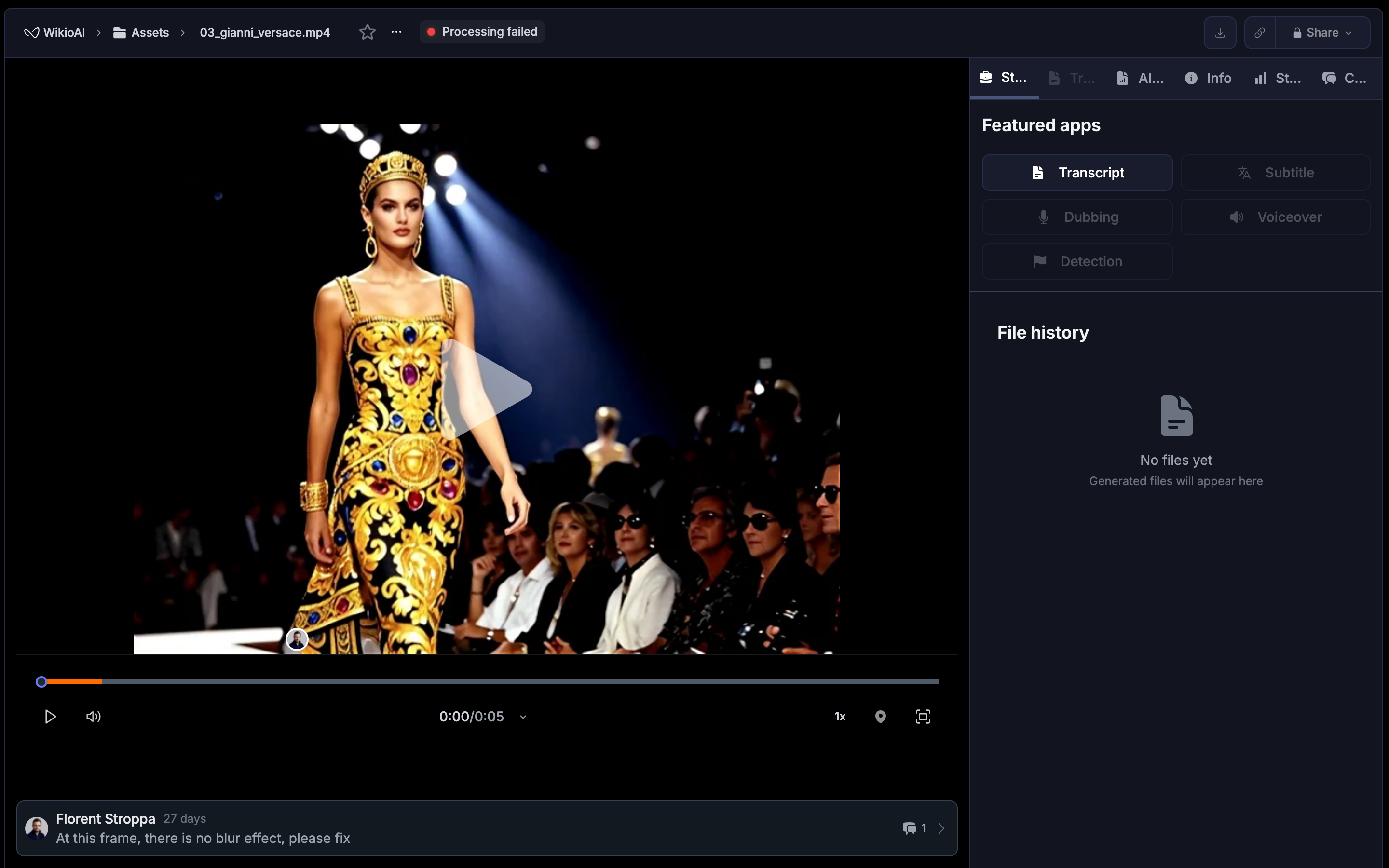
Comments appear as markers on the video timeline, giving editors a visual overview of where feedback exists. This makes it easy to scrub through a video and address each note in order without switching between the player and the comment list.
Comments in the player bar#
The most recent comment also appears at the bottom of the player view, showing the author and message. This gives quick context without opening the full Comments panel.
Best practices#
- Be specific: Reference what you see in the frame rather than giving vague feedback. The timecode anchoring helps, but clear descriptions save back-and-forth.
- Use one comment per issue: Separate notes into individual comments so each can be addressed and resolved independently.
- Attach references: When requesting a visual change, attach an image showing what you expect.
- Review in order: Work through the timeline from start to finish so editors can address feedback sequentially.
- Use replies for discussion: Keep follow-up questions in reply threads rather than creating new top-level comments on the same frame.